Requirements
- Windows, macOS or Linux
- 5.0 - 5.2 LTS
- a tablet computer with active stylus support, such as:
- iPad with Apple Pencil or
- a Samsung Galaxy Tab S with its S Pen
Capacitive Stylus?
A capacitive stylus is the simple universal pen with a soft rubber or mesh tip.
It fakes finger input, meaning it does not emit pen events, and will thereby not work.
INKit only draws from an active stylus, a pen the tablet was made for and can tell apart from a finger on the glass.
Graphics tablet?
A graphics tablet attached to the computer, such as a Wacom, is not part of this first release.
Support is coming in 1.1, depending on how the release is received. See the FAQ.
Experimental Builds
Experimental Blender builds such as 5.3-alpha/beta may work, but are not officially supported, and fixing any issues related to them will not be a priority. Still, feel free to report any issues you encounter.
Latest INKit
The latest version of INKit is 1.0 released on 2026-11-03 - available on Superhive and Gumroad.
See this page to learn what's new in the latest versions, or see the changelog for the full, detailed release history.
How to Install?
MACHIN3 Extension Repo Installation
If you are a patron, then you can install INKit from within Blender through the new MACHIN3 Extension Repo.
This is a cross-market repo, meaning your collected MACHIN3 addons, whether you purchased them through Superhive, Gumroad or Patreon will all show up in a single repo - at least once the accounts are synced.
Drag and Drop Installation
Blender supports drag and drop of addon .zip files (both legacy and extension addons!) from your system's filebrowser on the open Blender application to do the installation.
This is super convenient, and also works for update installations, but you should always restart Blender after updating to a new addon version.
Dropping the .zip on Blender installs INKit as an extension into the extensions/user_default folder.
Otherwise, you can also install it following the instructions in the official Blender manual.
Legacy Addon
If you still want to run it as a Legacy Addon - you can! Functionally it will be no different.
Instead of dropping the .zip on Blender, manually extract it into the scripts/addons folder.
Alternatively, when you have a previous version installed as a Legacy addon, you can use INKit's internal update installer, and it will automatically install the new version as a Legacy Addon too.
Dual-Installation blocking
With extensions, it's now more easily possible to install the same extension into multiple locations at the same time.
For example, you could have the same extension in multiple different folders under the main extensions folder.
You could also have the same addon as a legacy install in scripts/addons still.
 Multiple INKit Installations from different locations at the same time
To prevent issues inevitably arising from multiple such parallel installations, INKit will allow only one copy to actually activate.
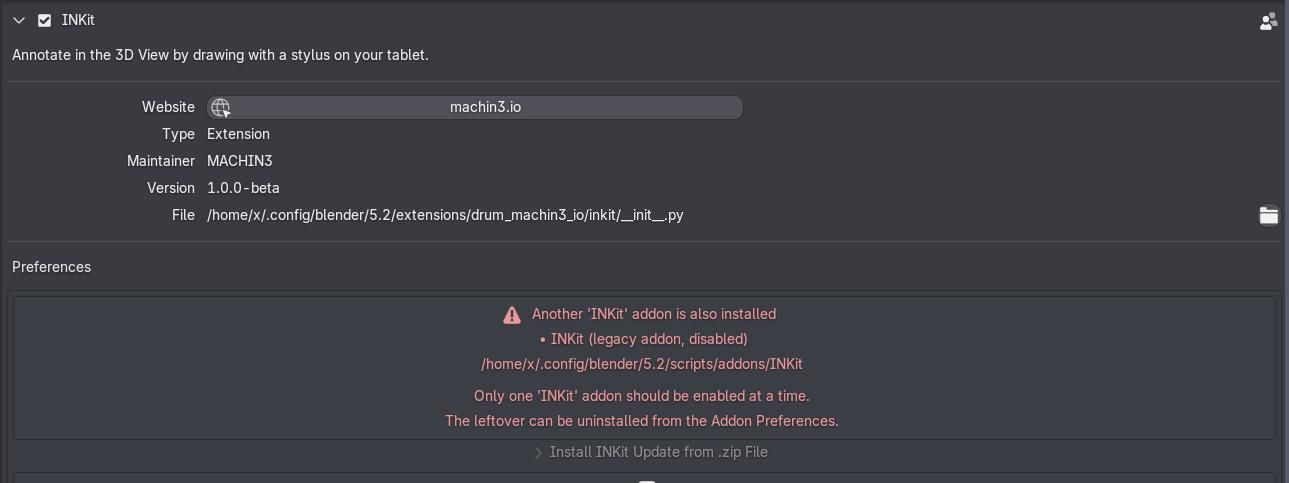 Only one copy will allow itself to activate, and point out if others are present
Note
With multiple parallel installations, each additional one will stay installed, but disable automatically within 3 seconds, and so individual installations never fight each other. The active copy's addon prefs will notify you of this, and suggest you uninstall the disabled leftover copies.
If you have a Legacy Addon copy enabled and then drop the .zip - or try to enable an extension copy - that new one will disable itself.
Deactivate or uninstall the leftover first, if you want the extension variant to stay enabled permanently. The same applies the other way around.
The Get Support tool also indicates whether the running copy is an extension or a legacy addon, and lists any leftover sibling installs.
Connect to Blender from your Tablet Computer
If the installation was successful and you have activated the addon, you will have access to INKit from the 3D view's sidebar under the MACHIN3 tab.
This is where you can then set up the connection between your tablet and Blender.
Special Case: Blender on macOS
macOS users should install Blender properly, by following the official instructions.
Avoid running it just from the Downloads folder!
Note that, for dragging of files and folders, you need to hold down the COMMAND key.
This will ensure AppTranslocation1 is avoided.
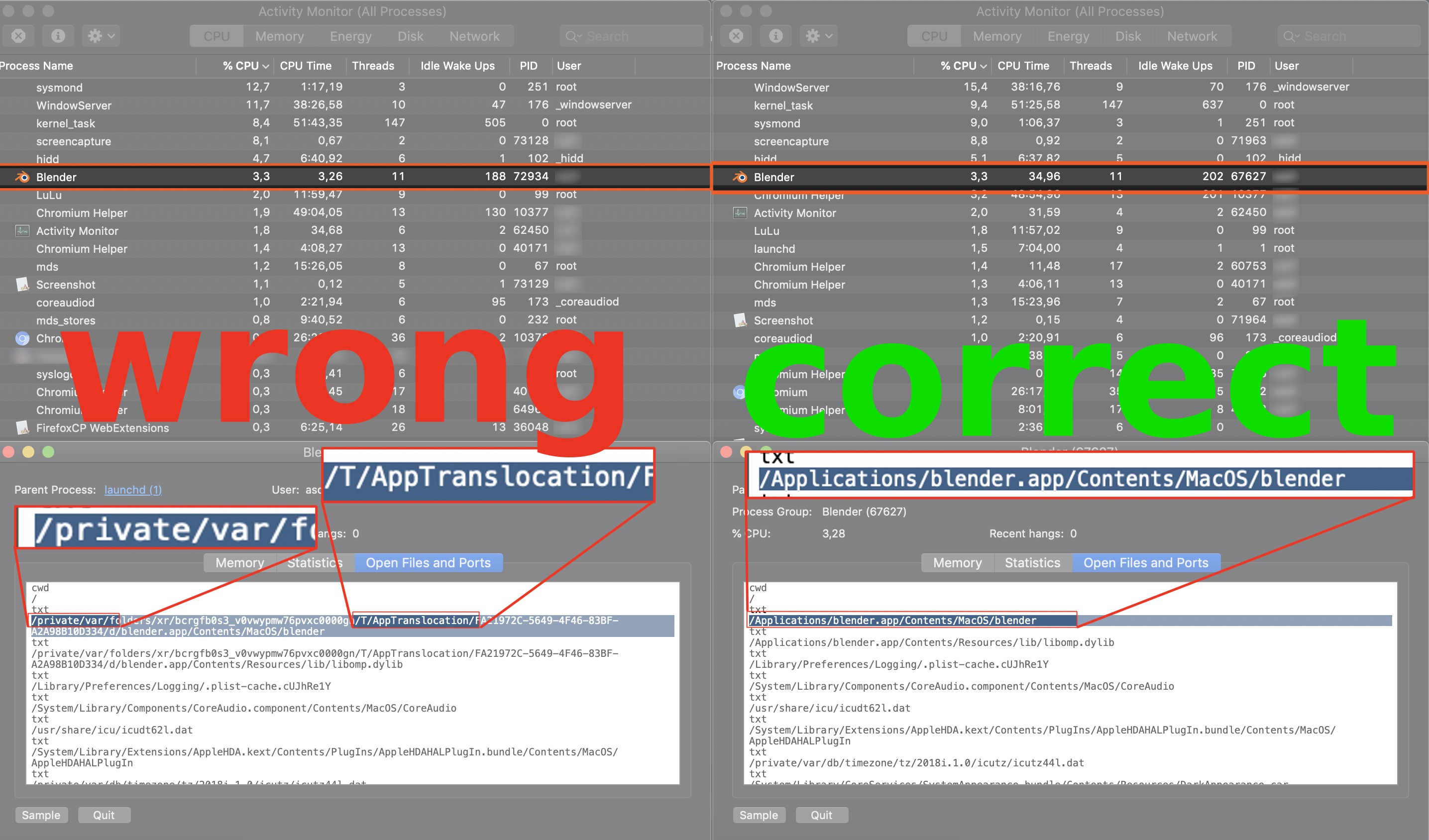
Furthermore, your download may not actually result in a .zip file, and instead extract automatically. This can and needs to be changed in Safari settings.
Special Case: Blender on Arch Linux
Arch Linux users and users of other Arch based or similar rolling release distros are advised to use the official Blender builds.
The Blender package in the Community repository does not supply its own Python, and does not follow official recommendations.
As a consequence, your system's Python version may not work properly with Blender and/or INKit.
Note
Use the official tarball from blender.org to be on the safe side, it comes with a bundled Python and is the correct version that Blender addons are built against.
-
Learn more about AppTranslocation. ↩