Please do use the red Get Support tool shown at the top of the preferences, if you ever need help with INKit. Clicking it will create log files, and provide further instructions in a readme.html file that you can open in your web browser.
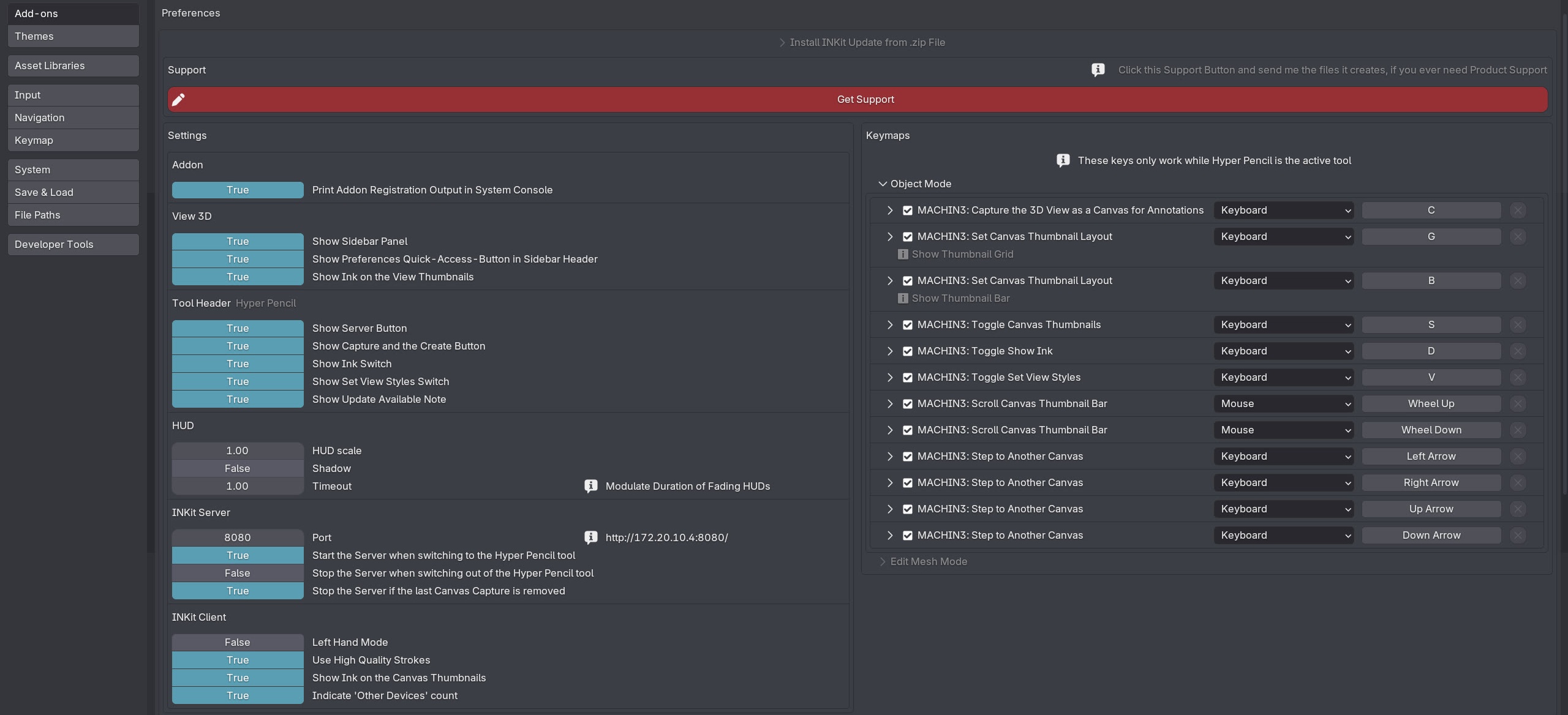 INKit addon preferences, with Settings on the left, and (tool) Keymaps on the right
In the addon preferences below, you can adjust various settings and keymaps governing INKit behavior and appearance.
Settings
Addon
The addon section allows you to disable INKit printing registration confirmation to the system console on Blender start and quit.
3D View
In the 3D View section you can choose whether you want INKit to display a panel in the MACHIN3 tab of the 3D View's sidebar, and if enabled whether the preferences quick-access button should appear in the panel's header.
In addition you can control whether Ink is drawn on top of canvas thumbnails when the Hyper Pencil tool is active in either the bar or the grid layout.
Tool Header
In the Tool Header section you can customize what is exposed in the tool header, especially on the left side of it.
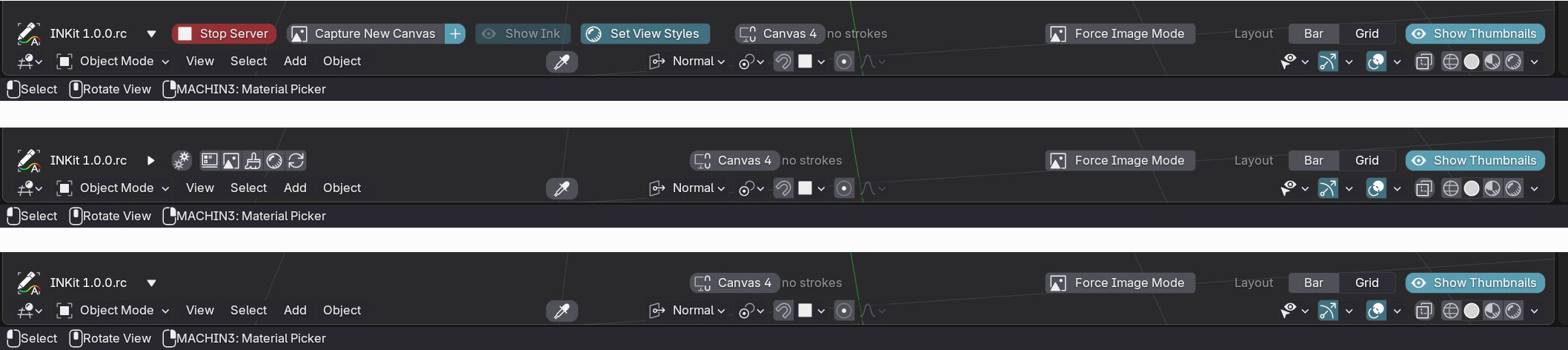 1. default tool header 2. unfolded tool header settings 3. all disabled
These very same preferences can also be accessed directly from the tool header in the 3D view by unfolding the little triangle button:
From here you also have quick access to the addon preferences via the ⚙️ button.
HUD
In the HUD section you can adjust the size and timing of HUD elements to your liking.
In INKit a fading HUD is shown to indicate server start and stop events as well as canvas capture creation.
Keymaps
All the keymaps INKit sets by default are exposed on the right side of the addon prefs, and can be changed there.
INKit keymaps work in Object and Edit Mesh modes, but only when the Hyper Pencil tool is active!